

CODEGEN Studio
CODEGEN Studio is a browser-based visual editor for assembling User-Defined Models using the CODEGEN block library. Instead of writing DSL files by hand, you drag blocks onto a canvas, connect them, fill in metadata, and export a valid .txt file ready for the codegen binary.
Installation
Section titled “Installation”pip install stepss-cg-studio, then run cg-studio. See
Installing CODEGEN Studio
for the Python version it needs, the address it serves, and why the Run
Codegen button needs a codegen executable you supply yourself.
CLI options
Section titled “CLI options”cg-studio --port 9000 # use a different portcg-studio --host 0.0.0.0 # allow network accesscg-studio --no-browser # start server without opening browserInstall from source (development)
Section titled “Install from source (development)”git clone https://github.com/SPS-L/stepss-cg-studiocd stepss-cg-studiopip install -e ".[dev]"cg-studioInterface Overview
Section titled “Interface Overview”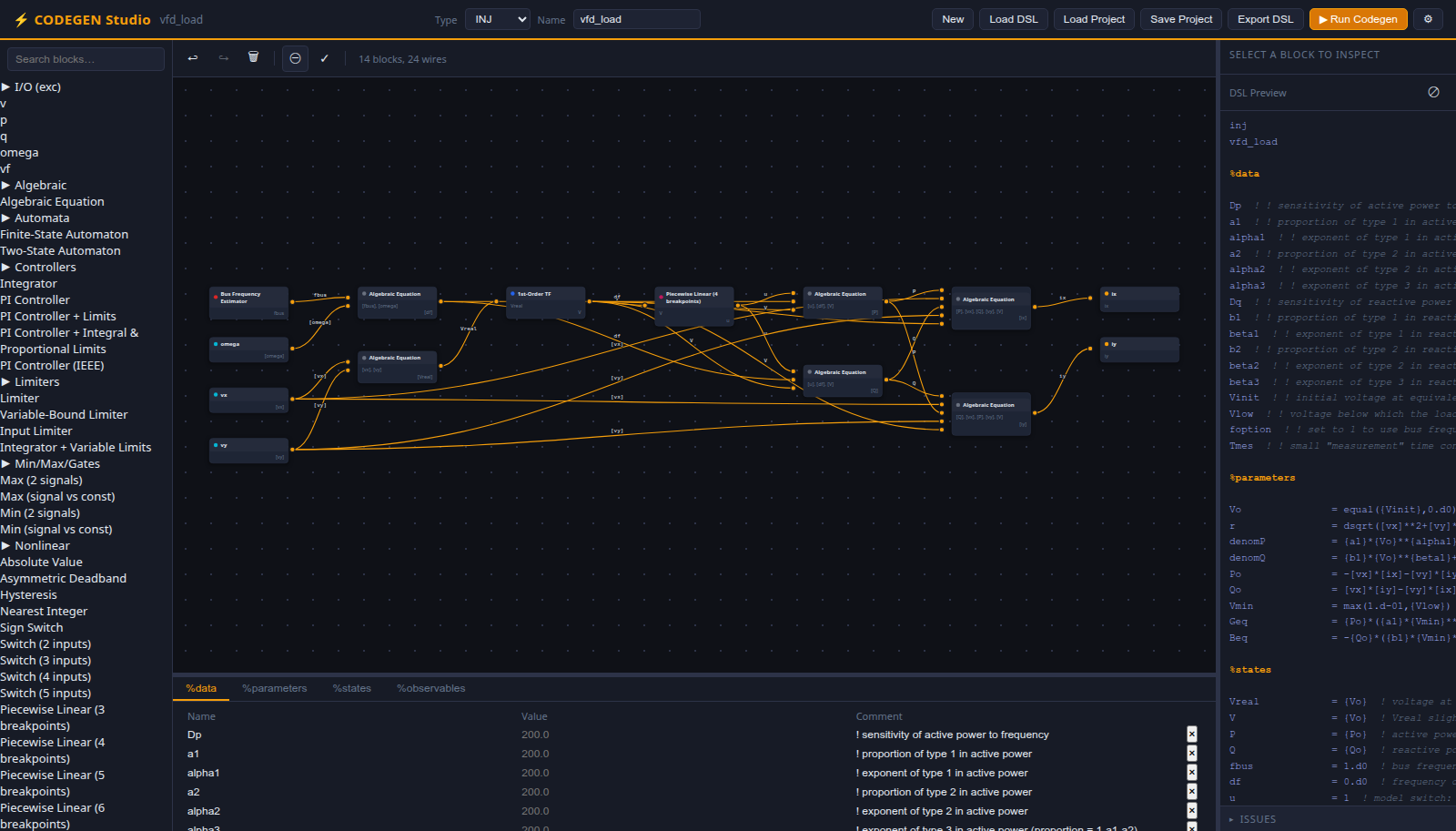
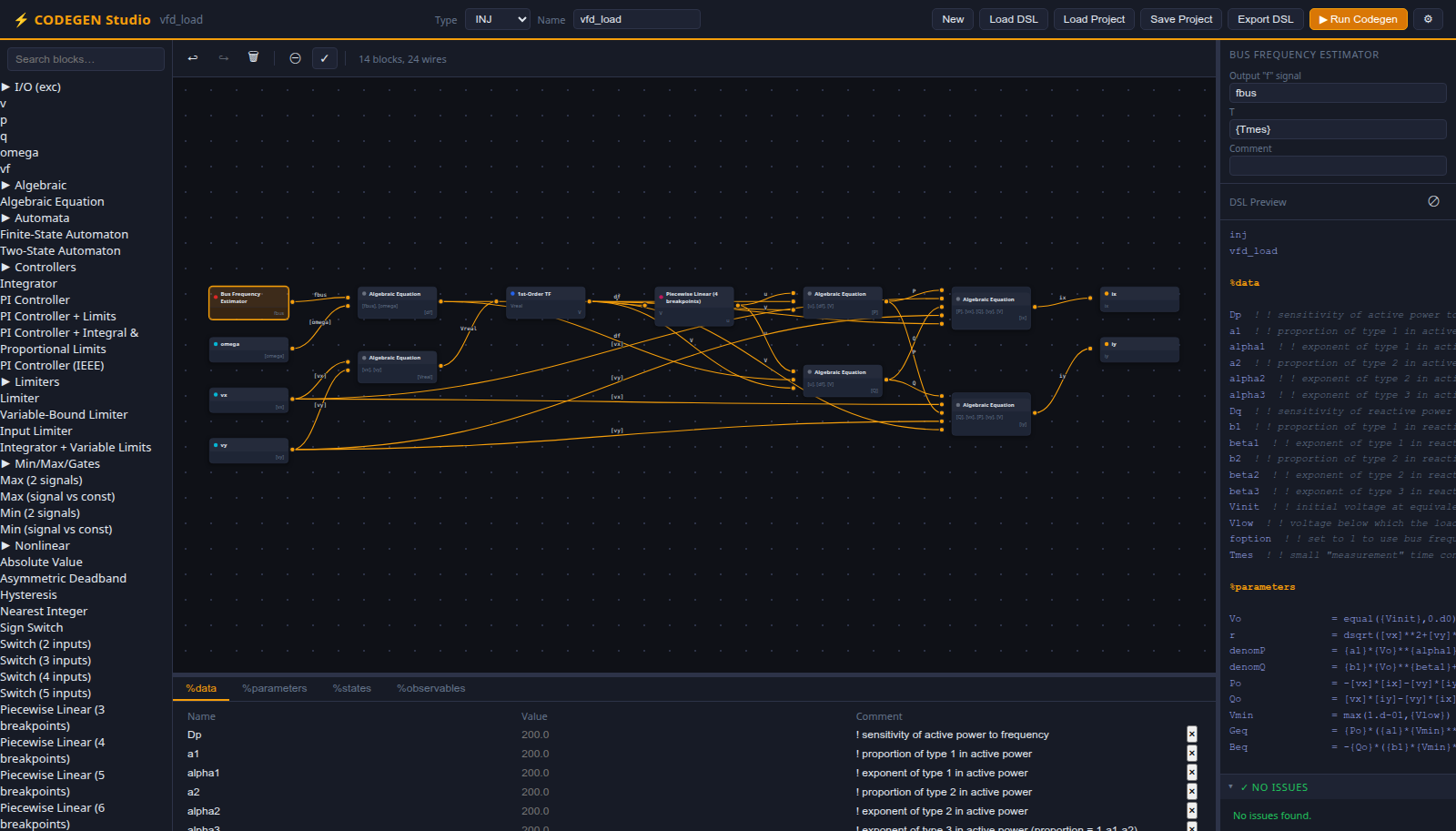
The interface has three columns:
| Area | Location | Purpose |
|---|---|---|
| Block palette | Left sidebar | Searchable catalogue of all CODEGEN blocks, grouped by category |
| Canvas | Center | Drag-and-drop block diagram with connection wires |
| Metadata tabs | Below canvas | Editable tables for %data, %parameters, %states, %observables |
| Block inspector | Right panel (top) | Edit output signal names and block arguments for the selected block |
| DSL preview | Right panel (bottom) | Live syntax-highlighted preview of the generated DSL code |
| Topbar | Top | Model type/name selectors, file operations, and settings |
Creating a Model
Section titled “Creating a Model”1. Choose the Model Type and Name
Section titled “1. Choose the Model Type and Name”Use the Type dropdown in the topbar to select the model category:
| Type | Description | Mandatory outputs | Colour theme |
|---|---|---|---|
| EXC | Excitation controller | vf | Blue |
| TOR | Torque controller | tm | Green |
| INJ | Current injector | ix, iy | Orange |
| TWOP | Two-port device | ix1, iy1, ix2, iy2 | Purple |
New in the topbar asks for the type before it clears the canvas, so a fresh model starts with the right RAMSES inputs and outputs already seeded.
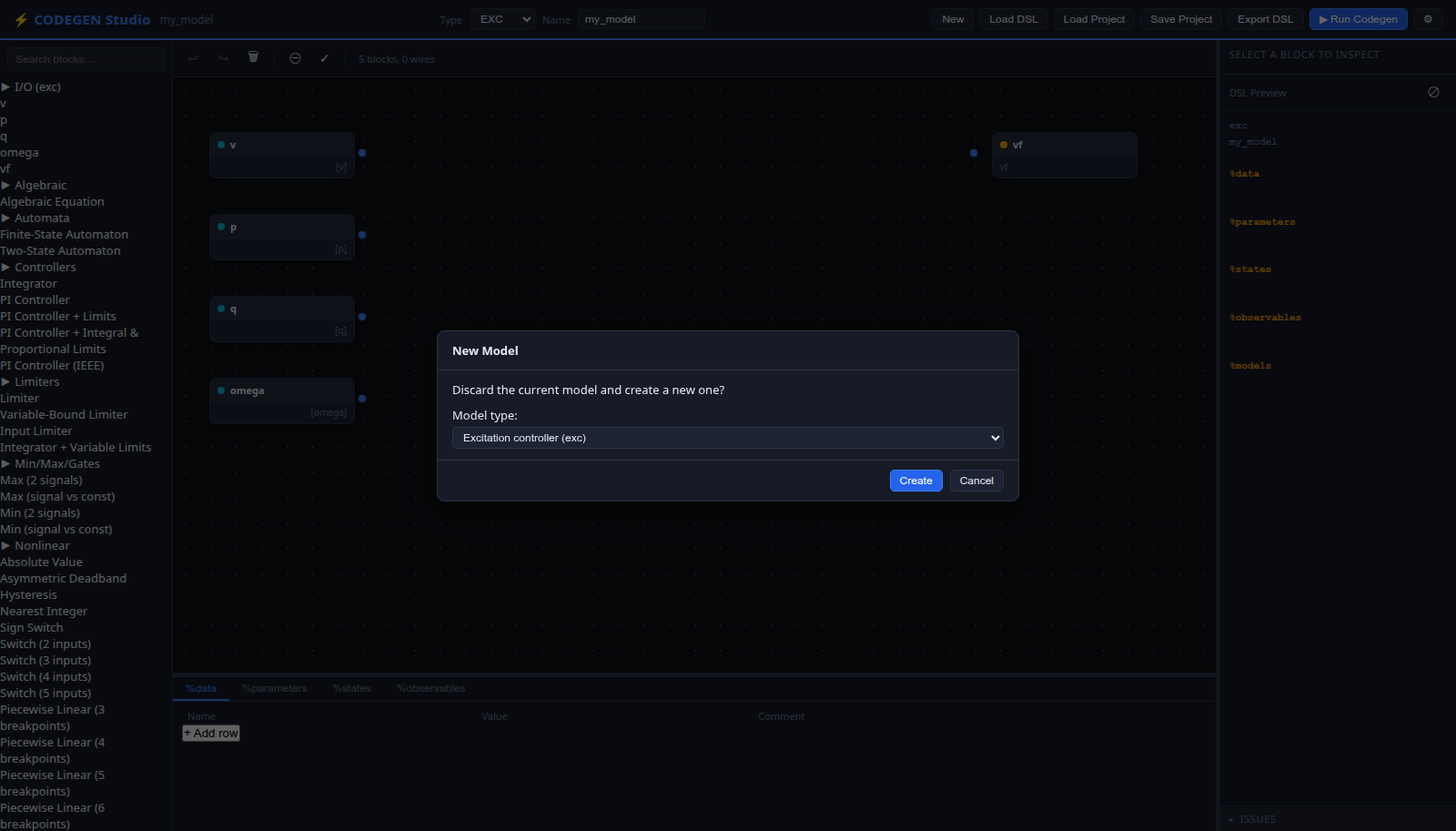
The UI accent colour changes to reflect the active model type. Type the model name (max 20 characters, the limit CODEGEN itself enforces) in the Name field next to the dropdown.
2. Add Blocks to the Canvas
Section titled “2. Add Blocks to the Canvas”The left palette lists all available blocks from the CODEGEN Blocks reference, organised by category (Transfer Functions, Limiters, Controllers, etc.).
- Search by typing in the search box at the top of the palette
- Expand a category by clicking its header
- Drag a block from the palette onto the canvas
Each block appears as a node with input ports on the left and output ports on the right. A coloured dot indicates the block category.
3. Connect Blocks
Section titled “3. Connect Blocks”Click and drag from an output port (right side) of one block to an input port (left side) of another. A wire appears showing the signal flow. The connection assigns a signal name that links the two blocks in the generated DSL.
- Each input port accepts exactly one incoming wire
- Each output port can fan out to multiple inputs
- The status bar below the canvas toolbar shows the current block and wire count
4. Edit Block Properties
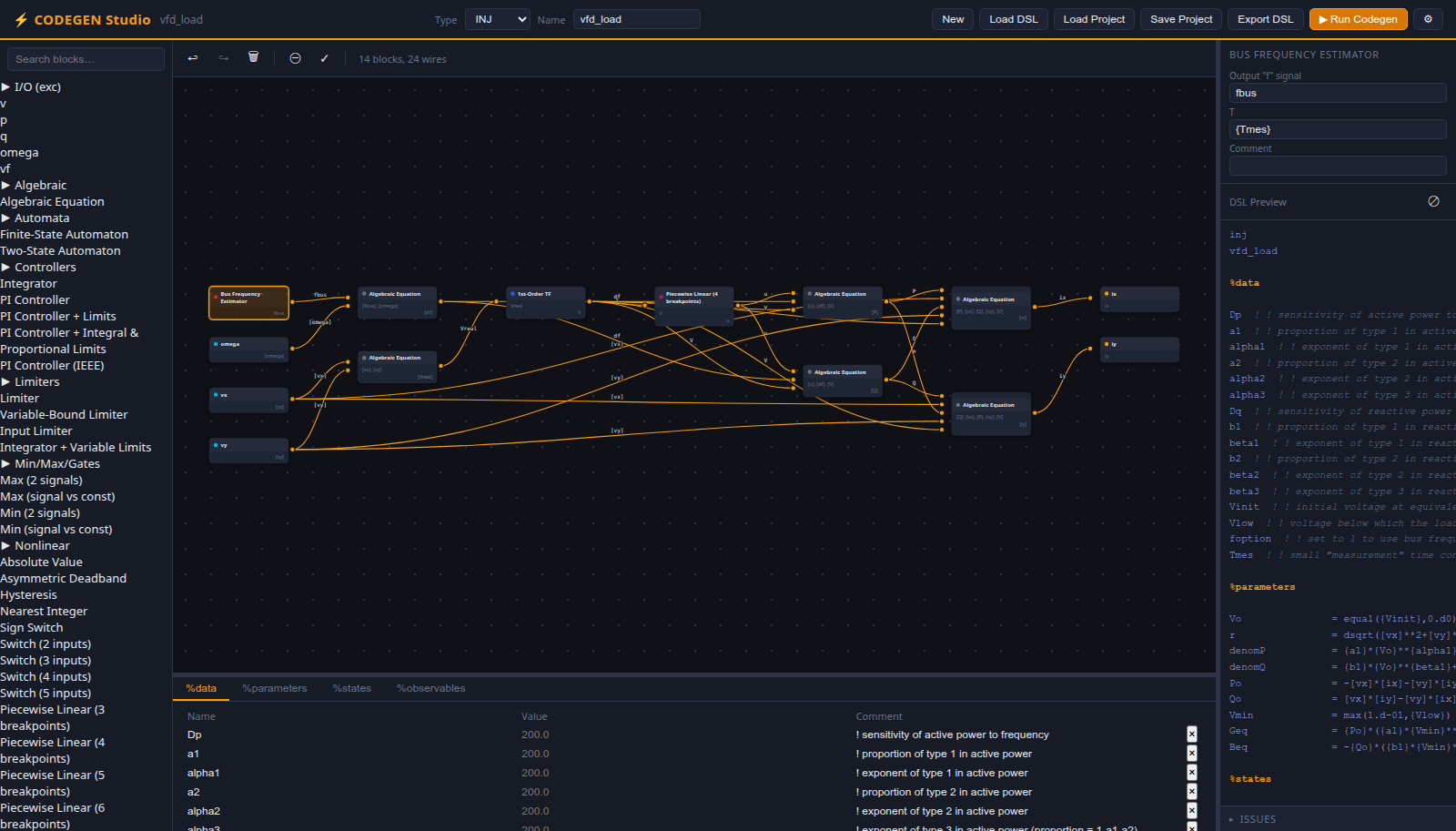
Section titled “4. Edit Block Properties”Click a block on the canvas to select it. The Block Inspector (right panel) shows:
- Output signal names: one editable field per output port. The default auto-generated name (e.g.,
tf11,int2) can be renamed to any valid identifier. This is the state name that appears in the DSL. - Arguments: block-specific parameters such as gain
K, time constantT, or limiter bounds. Values can be:- A numeric literal:
1.0 - A data reference:
{KA}(refers to an entry in%data) - A Fortran expression:
{1/{omegac}}
- A numeric literal:
The algeq (algebraic equation) block has a special Expression field for the equation set to zero.
5. Fill in the Metadata Tables
Section titled “5. Fill in the Metadata Tables”The four tabs below the canvas correspond to the four metadata sections of a CODEGEN DSL file:
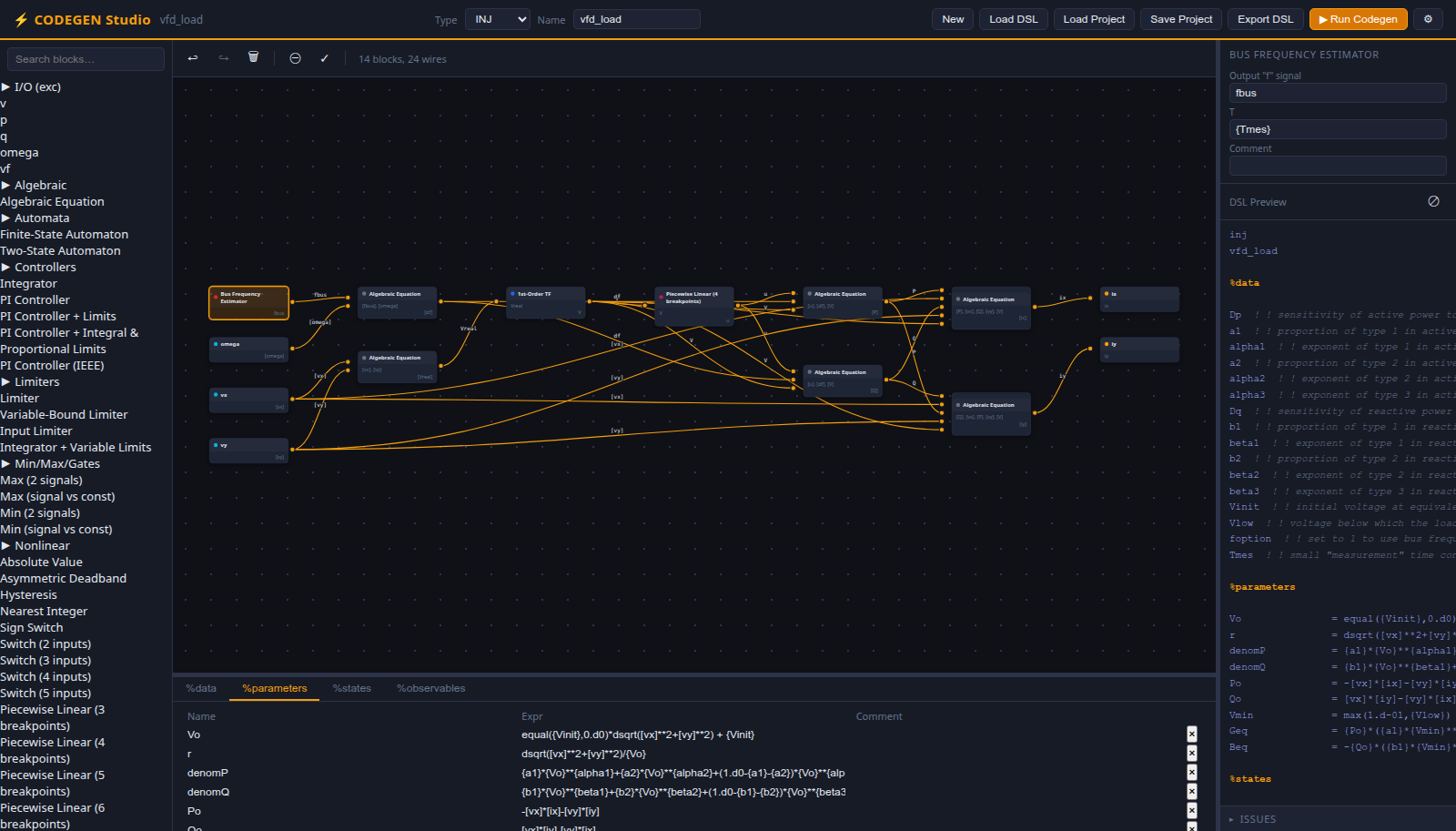
Purpose: Declare named constants whose values are read from the RAMSES data record at runtime.
| Column | Description | Example |
|---|---|---|
| Name | Identifier (max 20 chars) | KA |
| Value | Optional default | 200.0 |
| Comment | Annotation | AVR gain |
In block arguments and expressions, reference data values with braces: {KA}.
Purpose: Define derived quantities computed once at initialisation from data and initial state values.
| Column | Description | Example |
|---|---|---|
| Name | Identifier | Vo |
| Expr | Fortran expression | [vf]/{KE}+[vf]/{KA} |
| Comment | Annotation | initial voltage |
Use [name] to reference state/input variables and {name} to reference data constants. Multi-line expressions are supported with the & continuation marker.
Purpose: Declare the internal state variables of the model and their initial-condition expressions.
| Column | Description | Example |
|---|---|---|
| Name | State identifier | avr1 |
| Init | Initial value expression | vf/{KE} |
| Comment | Annotation | AVR integrator |
Every block output signal that represents a dynamic state should have a corresponding entry here. The mandatory output states for the selected model type (e.g., vf for EXC) must appear either as block outputs or in %states.
Purpose: List variables to be recorded during simulation. These are typically the states you want to monitor.
| Column | Description | Example |
|---|---|---|
| Name | Observable name | vf |
Observables do not need expressions. They refer to state names already defined elsewhere in the model.
Click ”+ Add row” to append a row. Click the x button on a row to remove it. All edits update the DSL preview in real time.
6. Review the DSL Preview
Section titled “6. Review the DSL Preview”The bottom-right panel shows a live syntax-highlighted preview of the generated DSL code. It updates automatically (with a 600 ms debounce) after every change. The preview uses colour coding:
| Colour | Meaning |
|---|---|
| Orange, bold | Section headers (%data, %parameters, etc.) |
| Gray, italic | Comments (! ...) |
| Blue | Numeric literals |
| Purple | Data/parameter references ({KA}) |
| Cyan | State/input references ([omega]) |
Click the copy button in the preview header to copy the DSL text to your clipboard.
Saving a Project
Section titled “Saving a Project”Click “Save Project” in the topbar (or press Ctrl+S / Cmd+S).
The browser downloads a .json file named after your model (e.g., simple_avr.json) containing the complete project state:
- Model type and name
- All blocks with their positions, arguments, and output signal names
- All wire connections
- All metadata (data, parameters, states, observables)
This is a lossless format, every aspect of your canvas layout and configuration is preserved. Use this format for work-in-progress models that you intend to continue editing.
Loading a Project
Section titled “Loading a Project”Click “Load Project” in the topbar and select a previously saved .json file.
The editor restores the full project state:
- Canvas blocks appear at their saved positions
- All wires are reconnected
- Metadata tables repopulate
- The model type and name update in the topbar
- The colour theme switches to match the model type
A toast notification confirms the load with the model name.
Importing a DSL File
Section titled “Importing a DSL File”Click “Load DSL” and select a .txt file written in the CODEGEN DSL format.
The backend parser extracts all sections and blocks from the file, and the editor reconstructs the canvas:
- Each
& blocknamein%modelsbecomes a node on the canvas - Signal references are resolved into wire connections
- Metadata sections populate the corresponding tabs
- A Sugiyama auto-layout algorithm assigns node positions automatically:
- Blocks are arranged left-to-right by dependency order
- A three-pass crossing-reduction minimises wire overlaps
- Feedback loops are detected and handled gracefully
This lets you visually inspect and edit any existing CODEGEN model, including the example models.
Checking the Model
Section titled “Checking the Model”The ✓ button on the canvas toolbar runs every structural check at once, without waiting for an export. Its findings go to the Issues panel in the right sidebar, which stays there rather than appearing as a dialog, so the list can be worked through while the canvas is edited. A model with nothing wrong reports that too, which is the useful half: it is the confirmation that the two export gates below will not stop you.
Exporting a DSL File
Section titled “Exporting a DSL File”Click “Export DSL” to download the generated .txt file.
Export runs two checks, in order. Each raises a dialog you can override with “Export Anyway” or abandon with “Cancel”.
Mandatory outputs. That every mandatory output state for the selected model type is produced by at least one block on the canvas:
Missing Mandatory Outputs
Missing mandatory outputs for exc:
vfThe codegen binary will reject this model.
Floating state connectors. That no state is referenced by several blocks without a wire joining them. A state literal sitting on one block’s port while the same name appears elsewhere in the project usually means a connection was left undrawn on the canvas:
Floating State Connectors
The following states are referenced by multiple blocks but the connections are not wired on the canvas:
Vcreferenced by 2 blocks without a shared wireThe emitted DSL may not compile. Wire the connectors up before exporting.
Note that Run Codegen applies only the first of the two. A model that exports with a floating-state warning will be sent to the codegen binary without one.
The exported file follows the strict DSL section order: model type, model name, %data, %parameters, %states, %observables, %models. Blocks are emitted in topologically-sorted order (dependencies before dependents).
Running CODEGEN
Section titled “Running CODEGEN”Click “Run Codegen” (the accent-coloured button with the play icon) to compile the model into Fortran.
The same mandatory-output validation runs first. If validation passes:
- The editor generates the DSL text
- The backend writes it to a temporary file and invokes the bundled CODEGEN
- On success, a modal displays the generated
.f90source code with options to “Download .f90” or “Close” - On failure, a modal shows the error output from CODEGEN
The downloaded .f90 file follows the naming convention exc_simple_avr.f90 (type prefix + model name) and is ready to compile and link with RAMSES.
File Formats Summary
Section titled “File Formats Summary”| Format | Extension | Use case | Lossless? |
|---|---|---|---|
| Project | .json | Save/resume editing | Yes, includes canvas positions, all metadata |
| DSL | .txt | Input to codegen binary | Structure only, no canvas layout |
| Fortran | .f90 | Output from codegen | Export only, cannot be re-imported |
Keyboard Shortcuts
Section titled “Keyboard Shortcuts”| Shortcut | Action |
|---|---|
Ctrl+S / Cmd+S | Save project |
Ctrl+Z / Cmd+Z | Undo |
Ctrl+Y / Cmd+Shift+Z | Redo |
Delete / Backspace | Delete selected block |
Escape | Close any open modal |
Shortcuts are disabled while typing in text fields.
Settings
Section titled “Settings”Click the gear icon in the topbar to configure:
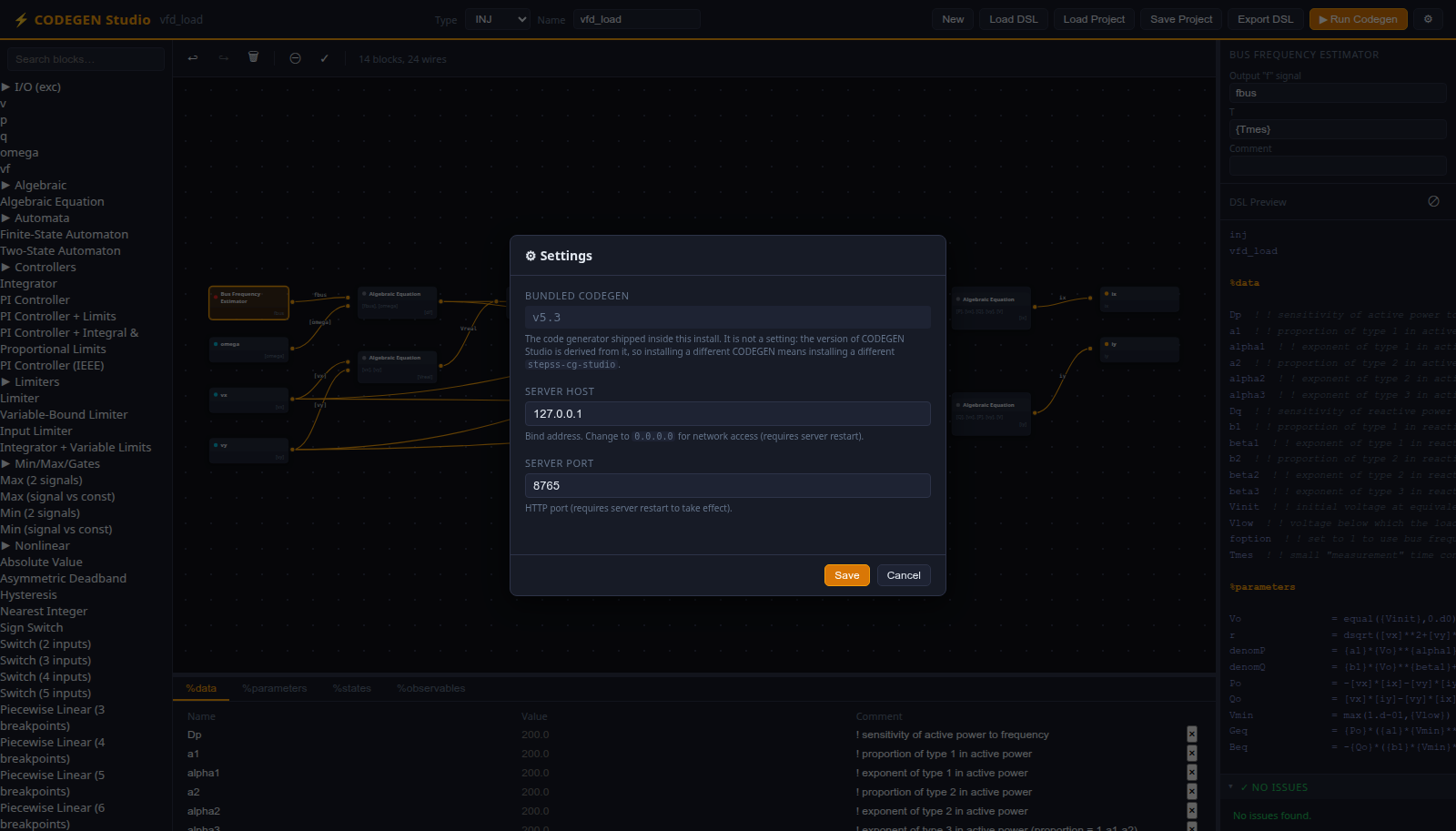
| Row | Default | Description |
|---|---|---|
| Bundled CODEGEN | (read-only) | Which CODEGEN release this install runs |
| Server host | 127.0.0.1 | Bind address (change to 0.0.0.0 for network access) |
| Server port | 8765 | HTTP port |
Changes to host and port require a server restart.
Bundled CODEGEN is not a setting. It reports what the wheel carries, and
the two leading components of the package’s own version name the same release:
stepss-cg-studio 5.3.0 and 5.3.1 both run CODEGEN 5.3, and 5.4.0 is the first
release on CODEGEN 5.4. Running a different generator therefore means
installing a different stepss-cg-studio, not repointing the editor. Earlier
versions had a “Codegen binary path” field, which existed only because no
CODEGEN was shipped; an upgrade drops it from config.json automatically.
Settings are stored in a platform-specific config file:
- Windows:
%LOCALAPPDATA%\cg-studio\config.json - Linux/macOS:
~/.config/cg-studio/config.json
They can also be edited via the REST API at /docs (Swagger UI).
Workflow Example: Building an AVR Model
Section titled “Workflow Example: Building an AVR Model”This walkthrough creates a simplified Automatic Voltage Regulator (AVR) as an EXC model.
Step 1: Set up the model
Section titled “Step 1: Set up the model”- Select EXC from the Type dropdown
- Type
simple_avrin the Name field
Step 2: Add data constants
Section titled “Step 2: Add data constants”Switch to the %data tab and add rows:
| Name | Value | Comment |
|---|---|---|
KA | AVR gain | |
TA | AVR time constant | |
VREF | Reference voltage |
Step 3: Place blocks
Section titled “Step 3: Place blocks”Drag the following blocks from the palette onto the canvas:
algeq, to compute the voltage errortf1p. a first-order transfer function for the AVR
Step 4: Connect and configure
Section titled “Step 4: Connect and configure”- Connect the
algeqoutput to thetf1pinput - Select the
algeqblock and set its Expression to{VREF}-[v]-avr1 - Select the
tf1pblock and:- Rename its output signal to
vf(this is the mandatory EXC output) - Set K to
{KA}and T to{TA}
- Rename its output signal to
Step 5: Define states
Section titled “Step 5: Define states”Switch to the %states tab and add:
| Name | Init | Comment |
|---|---|---|
avr1 | vf/{KA} | AVR integrator state |
Step 6: Add observables
Section titled “Step 6: Add observables”Switch to the %observables tab and add vf.
Step 7: Export
Section titled “Step 7: Export”- Click “Export DSL”, validation passes because
vfis produced by thetf1pblock - The downloaded
simple_avr.txtis ready forcodegen -tsimple_avr.txt - Or click “Run Codegen” to generate
exc_simple_avr.f90directly
See Also
Section titled “See Also”- User-Defined Models, DSL file format and model framework
- CODEGEN Blocks, complete block reference
- CODEGEN Model Examples, annotated model files for all four types